
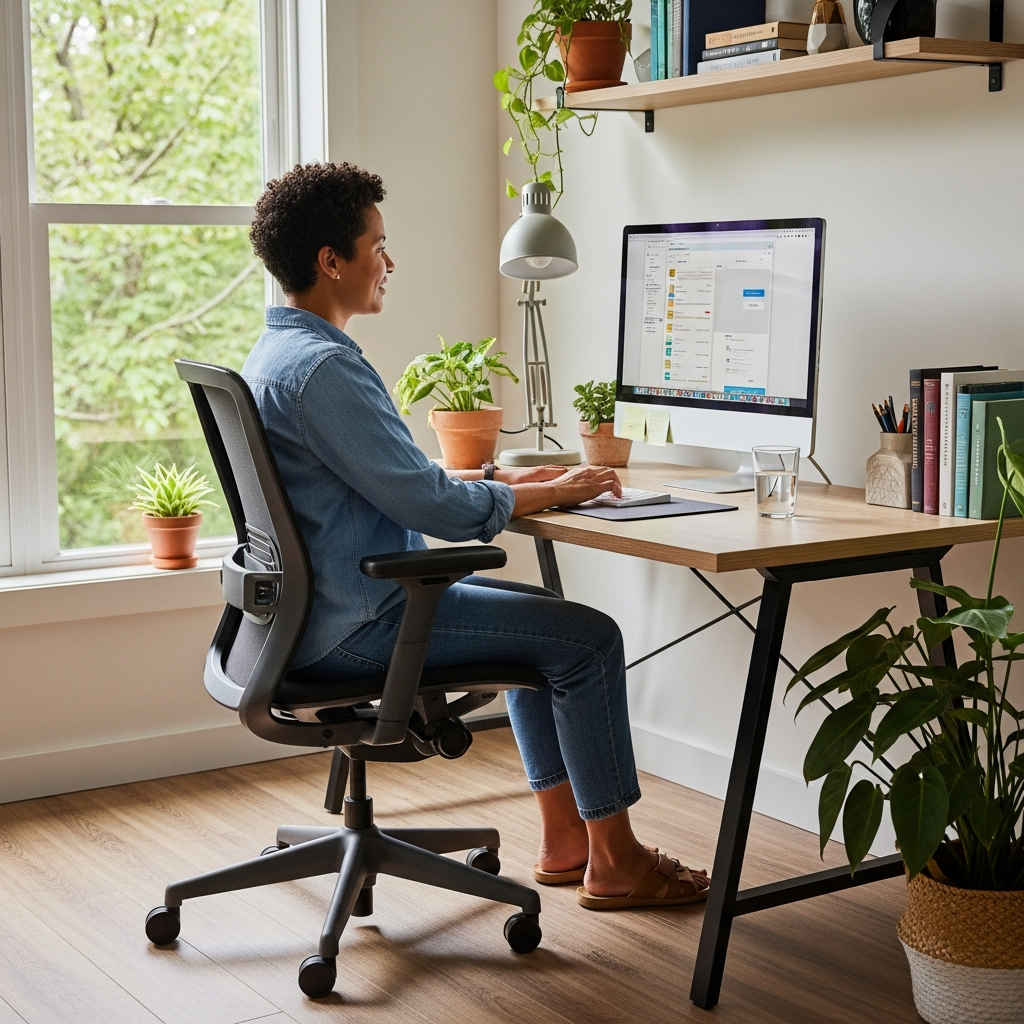
Ergonomic Workspace Setup: Step-by-Step Guide for Desk Workers
Did you know that approximately 80% of office workers experience some form of musculoskeletal discomfort? If you’ve ever ended your workday with a stiff neck, sore back, or aching wrists, you’re not alone. The problem often stems from poor workspace design that forces our bodies into unnatural positions for hours on end. The good news is that creating an ergonomic workspace setup can significantly reduce these issues and may help prevent long-term health problems. This comprehensive guide will walk you through every step of creating a workspace that supports your body naturally. Whether you’re dealing with computer wrist pain or general discomfort, the right setup can make all the difference.
Research from the CDC Workplace Health Promotion program shows that proper ergonomics can reduce musculoskeletal disorders by up to 61%. An effective ergonomic workspace setup isn’t just about comfort—it’s about protecting your health while boosting productivity. Let’s transform your workspace from a source of pain to a haven of comfort and efficiency.
The Foundation: Your Ergonomic Chair
Your chair serves as the cornerstone of your entire workspace. Choosing and adjusting it properly forms the first critical step in your ergonomic workspace setup journey. According to the OSHA Computer Workstation eTool, your chair should support your spine’s natural curves while allowing freedom of movement.
Finding the Right Chair Height
The best chair height for ergonomics allows your feet to rest flat on the floor with your knees at approximately 90-degree angles. If your feet don’t reach the floor comfortably, consider using a footrest. Your thighs should be parallel to the floor, and there should be about two inches of space between the back of your knees and the chair seat.
Lumbar Support Essentials
Proper lumbar support maintains the natural inward curve of your lower back. Adjust your chair’s lumbar support so it fits snugly in the curve of your lower back. If your chair lacks built-in support, a rolled towel or small cushion can provide temporary relief. The American Chiropractic Association recommends lumbar support that maintains spinal alignment throughout your workday.
Armrest Positioning
Adjust armrests so your shoulders remain relaxed and your elbows form 90-100 degree angles. Your forearms should rest comfortably without your shoulders hiking up. If armrests interfere with your ability to get close to your desk, consider removing them or choosing a chair with adjustable or removable armrests.
Desk Setup Essentials
Your desk serves as the platform for all your work activities. Proper desk setup ensures everything remains within comfortable reach while maintaining good posture. A well-organized workspace can significantly reduce strain and improve efficiency.
Desk Height Calculations
When seated properly, your desk height should allow your forearms to be parallel to the floor when typing. Your elbows should form 90-100 degree angles, and your wrists should remain straight, not bent upward or downward. If your desk is too high, consider adjusting your chair height or using a keyboard tray.
Workspace Organization
Keep frequently used items within easy reach—typically within 18 inches of your body. Place less frequently used items further away to encourage occasional movement and stretching. This organization strategy helps prevent repetitive strain while keeping you organized and efficient.
Cable Management
Tangled cables not only create visual clutter but can also restrict movement and create tripping hazards. Use cable organizers, clips, or sleeves to keep cords tidy and out of the way. Proper cable management contributes to a cleaner, safer workspace that supports your ergonomic goals.
Remember that prolonged screen time can contribute to digital eye strain, so consider your visual comfort as part of your overall desk setup strategy.
Monitor and Keyboard Placement
Proper positioning of your monitor, keyboard, and mouse is crucial for preventing neck, shoulder, and wrist strain. These elements work together to create a comfortable visual and physical interface with your computer.
Monitor Height and Distance
For optimal monitor placement for neck pain prevention, position the top of your screen at or slightly below eye level. Your eyes should look slightly downward when viewing the middle of the screen. Place the monitor about an arm’s length away (20-30 inches), adjusting based on your vision and screen size.
Keyboard and Mouse Positioning
Keep your keyboard and mouse at the same height, with your keyboard positioned directly in front of you. Your mouse should be close to the keyboard to prevent excessive reaching. Consider using an ergonomic keyboard and mouse that support neutral wrist positions to reduce strain.
Document Placement
If you frequently reference documents while typing, use a document holder placed at the same height and distance as your monitor. This placement prevents constant neck movement between your screen and documents, reducing strain on your neck and shoulders.
Regular stretching can help counteract the effects of prolonged sitting. Consider incorporating upper crossed syndrome exercises into your routine to address common postural issues that develop from computer work.
Essential Ergonomic Accessories
While proper furniture forms the foundation of your workstation ergonomics, strategic accessories can enhance comfort and address specific needs. These tools can make significant differences in your daily comfort levels.
Footrests and Anti-Fatigue Mats
If your feet don’t comfortably reach the floor, a footrest can provide essential support. For standing desks, anti-fatigue mats cushion your feet and encourage subtle movement. Both accessories promote better circulation and reduce pressure on your lower body.
Monitor Arms and Stands
Monitor arms offer superior adjustability compared to standard monitor stands. They allow you to easily change your monitor’s height, depth, and angle throughout the day. This flexibility supports dynamic working positions and can reduce eye and neck strain.
Wrist Rests and Keyboard Trays
Wrist rests provide support during typing breaks but should not be used while actively typing. Keyboard trays can help achieve proper keyboard height if your desk is too high. Both accessories should support neutral wrist positions rather than forcing your wrists into awkward angles.
Maintaining Proper Posture and Movement
Even the perfect ergonomic workspace setup won’t help if you remain static for hours. Movement and posture awareness are essential components of long-term workspace health. These practices complement your physical setup.
The 20-20-20 Rule for Eyes
Every 20 minutes, look at something 20 feet away for 20 seconds. This simple practice gives your eye muscles a break from focusing on nearby screens. It’s an easy habit that can significantly reduce digital eye strain and associated headaches.
Microbreaks and Stretching
Take short breaks every 30-60 minutes to stand, stretch, or walk around. These microbreaks prevent muscle fatigue and improve circulation. Simple stretches for your neck, shoulders, back, and wrists can relieve tension that builds during focused work periods.
Posture Check-ins
Set periodic reminders to check your posture throughout the day. Ensure your ears align with your shoulders, your shoulders relax away from your ears, and your back maintains its natural curves. These quick check-ins help you maintain the benefits of your ergonomic setup.
Remember that proper posture isn’t about sitting perfectly still—it’s about maintaining alignment while allowing natural movement. The goal is comfort and support, not rigidity.
Budget-Friendly Ergonomic Solutions
Creating an effective ergonomic workspace setup doesn’t require expensive equipment. Many effective solutions use everyday items or simple modifications. These budget-friendly options make ergonomic improvements accessible to everyone.
DIY Adjustments
Use books or sturdy boxes to raise your monitor to proper height. A rolled towel can serve as lumbar support. Pillows or cushions can adjust chair height. These simple solutions demonstrate that ergonomic improvements often require creativity more than cash.
Prioritizing Investments
If you have limited funds, prioritize a good chair first, then consider monitor adjustments, followed by accessories. Remember that your body’s comfort and health represent the most important investment you can make in your workspace.
Gradual Improvements
Don’t feel pressured to perfect your setup immediately. Make one change at a time, observe how it affects your comfort, then adjust accordingly. This gradual approach allows your body to adapt while you learn what works best for your specific needs.
Conclusion: Your Path to Pain-Free Productivity
Creating an effective ergonomic workspace setup represents one of the most valuable investments you can make in your health and productivity. By following these step-by-step guidelines, you can transform your workspace from a source of discomfort to a foundation for success. Remember these key takeaways:
- Start with your chair—proper support forms the foundation of good ergonomics
- Position your monitor correctly to prevent neck strain and eye fatigue
- Keep frequently used items within easy reach to minimize excessive reaching
- Incorporate movement and breaks throughout your workday
- Make gradual improvements based on what feels comfortable for your body
Your journey to better workspace health begins today. Start with one adjustment from this guide, notice how it feels, then incorporate another. Share your experiences in the comments below—we’d love to hear what works for you! If you’re concerned about specific postural issues like forward head posture, consider consulting with a healthcare professional for personalized guidance.
Remember that the most effective ergonomic setup is one that you’ll actually use consistently. Listen to your body, make adjustments as needed, and enjoy the benefits of working in a space designed to support your health and productivity.
Medical Disclaimer: This article is for informational purposes only and does not constitute medical advice. Always consult a qualified healthcare provider before making changes to your health routine or if you have specific medical concerns.