
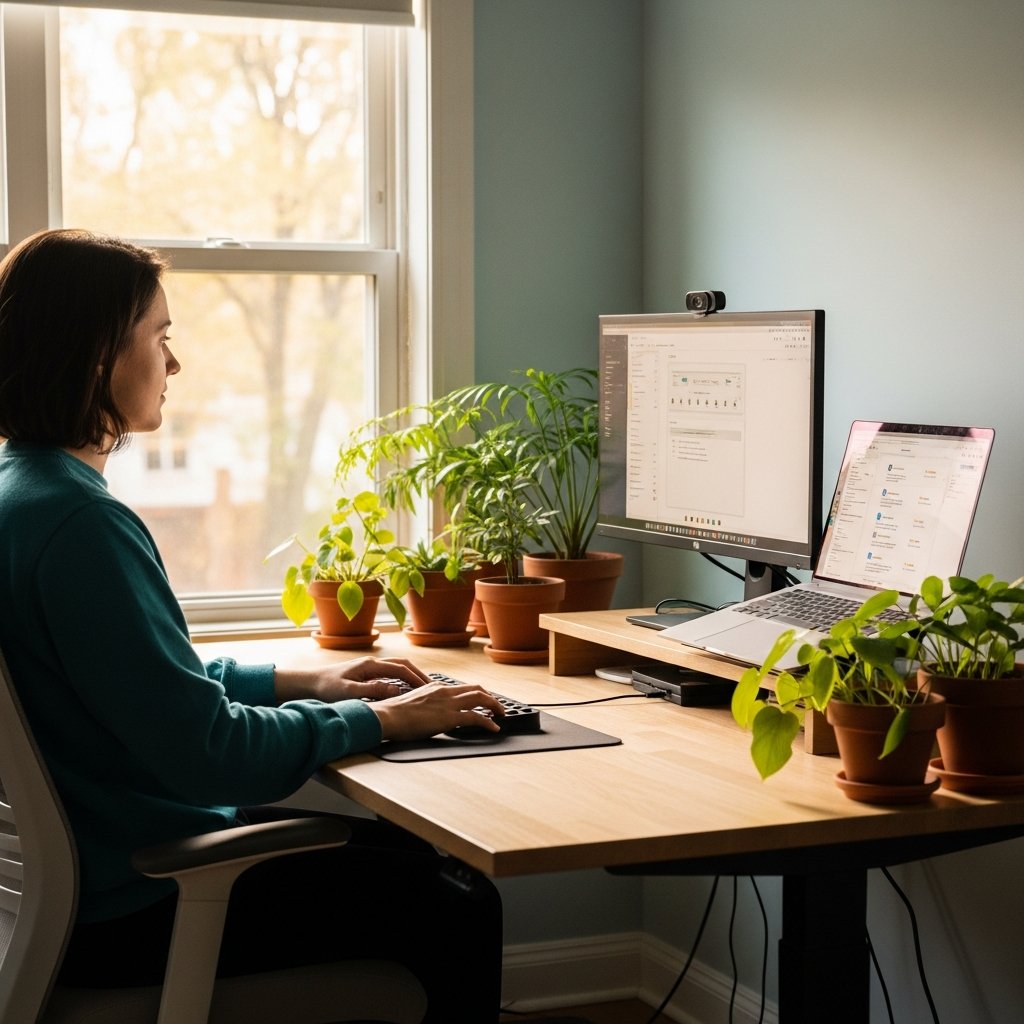
Ergonomic Monitor Setup: Science-Backed Guide for Eye Health & Posture
Did you know that approximately 65% of computer users experience regular eye strain, while 50% report neck or back pain from poor workstation setup? If you spend hours staring at screens, you’ve likely felt the familiar ache behind your eyes or tension in your shoulders. These symptoms aren’t just minor inconveniences—they’re signals that your monitor positioning may be harming your health. The good news is that a proper ergonomic monitor setup can significantly reduce these issues. This science-backed guide provides specific measurements, adjustments, and principles to optimize your workstation for both eye health and posture.
The Science Behind Proper Monitor Positioning
Research consistently shows that improper monitor placement contributes to multiple health concerns. According to the American Optometric Association, digital eye strain affects nearly 60% of adults who use computers regularly. The National Institute for Occupational Safety and Health (NIOSH) reports that musculoskeletal disorders from poor workstation ergonomics cost billions annually in lost productivity and medical expenses.
When your monitor is positioned incorrectly, your body compensates in ways that strain muscles and eyes. For example, a screen placed too high forces you to tilt your head backward, straining neck muscles. A monitor positioned too close requires constant eye focusing adjustments, leading to fatigue. Understanding these principles helps you create a computer workstation setup that supports rather than strains your body.
How Poor Positioning Affects Your Health
Three main issues arise from improper monitor placement:
- Digital Eye Strain: Symptoms include blurred vision, dry eyes, headaches, and light sensitivity
- Neck and Shoulder Pain: Improper height forces unnatural head positions
- Poor Posture: Leads to back pain and long-term musculoskeletal issues
Finding Your Perfect Monitor Height
The question of how to set up monitor for eye health begins with proper height adjustment. Your eye level should align with the top third of your screen. This position allows your eyes to view most content with minimal upward or downward gaze, reducing strain on eye muscles and neck.
Here’s a step-by-step guide for monitor height adjustment:
- Sit comfortably in your chair with proper posture
- Close your eyes and position yourself naturally
- Open your eyes—your gaze should land at the top third of your screen
- Adjust your monitor stand, books, or riser until this alignment is achieved
- Ensure the entire screen remains within your comfortable viewing range
Remember that proper eye level monitor position works in tandem with your chair height. For optimal results, pair your monitor adjustments with a proper ergonomic chair setup to create a harmonious workstation.
Tools for Height Adjustment
If your monitor doesn’t have built-in height adjustment, consider these solutions:
- Monitor arms or stands with vertical adjustment
- Sturdy books or risers (ensure stability)
- Adjustable desk mounts
- Ergonomic monitor stands specifically designed for height flexibility
Optimal Monitor Distance for Eye Health
Determining the proper monitor distance from eyes is crucial for preventing eye strain. The general guideline recommends positioning your screen approximately an arm’s length away (20-28 inches). However, individual factors like screen size, vision correction, and personal comfort should guide your final placement.
The American Optometric Association suggests these distance guidelines:
- Standard monitors (20-24 inches): 20-28 inches from your eyes
- Larger screens (27+ inches): May require slightly greater distance
- Multiple monitors: Position primary screen directly in front, secondary screens at comfortable angles
Implement the 20-20-20 rule alongside proper distance: every 20 minutes, look at something 20 feet away for 20 seconds. This practice, combined with our digital eye strain relief techniques, can significantly reduce eye fatigue.
Testing Your Monitor Distance
Use this simple test to check your monitor distance guide accuracy:
- Extend your arm fully toward the screen
- Your fingertips should just touch or nearly touch the screen
- Adjust until this distance feels comfortable for reading text
- Consider font size—if you’re leaning forward to read, increase font size rather than decreasing distance
Additional Ergonomic Adjustments
Beyond height and distance, several other adjustments optimize your desk ergonomics setup. These fine-tuning steps address common issues like glare, contrast problems, and viewing angles.
Monitor Tilt and Angle
Most experts recommend a slight backward tilt of 10-20 degrees. This position:
- Reduces glare from overhead lighting
- Minimizes reflections
- Creates a more natural viewing angle
- Helps maintain proper neck alignment
Brightness and Contrast Settings
Proper display settings significantly impact eye comfort:
- Match brightness to surroundings: Screen brightness should approximate ambient light
- Adjust contrast: Higher contrast improves readability without increasing brightness
- Use blue light filters: Especially during evening hours
- Consider ambient lighting: Position monitors perpendicular to windows to reduce glare
Creating Your Complete Ergonomic Workstation
A truly effective computer workstation setup integrates monitor positioning with other ergonomic elements. The Occupational Safety and Health Administration (OSHA) provides comprehensive guidelines for office ergonomics that emphasize holistic approaches.
Integration with Other Workstation Elements
Your monitor setup should coordinate with:
- Chair position: Adjust chair height so feet rest flat, knees at 90 degrees
- Keyboard placement: Position so elbows remain at 90-110 degrees
- Mouse position: Keep close to keyboard to minimize reaching
- Document placement: Use document holders at screen level to reduce head movement
Multiple Monitor Setup
For dual or triple monitor configurations:
- Place primary monitor directly in front
- Angle secondary monitors slightly inward (15-30 degrees)
- Ensure all screens are at equal height
- Maintain consistent distance across all monitors
- Consider curved monitors for more seamless multi-screen experiences
Conclusion: Your Path to Healthier Computing
Implementing a proper ergonomic monitor setup offers immediate and long-term benefits. By following these science-backed guidelines, you can reduce eye strain, prevent musculoskeletal issues, and enhance productivity. Remember these key takeaways:
- Height matters: Position monitor so top third aligns with eye level
- Distance counts: Maintain arm’s length distance (20-28 inches)
- Angles help: Use slight backward tilt (10-20 degrees)
- Integration is key: Coordinate monitor position with chair, keyboard, and lighting
- Regular breaks: Implement the 20-20-20 rule and incorporate desk stretches for office workers
Start today by making one adjustment to your workstation. Small changes accumulate into significant health benefits over time. Share your ergonomic journey in the comments below—we’d love to hear what works for you!
Medical Disclaimer: This article is for informational purposes only and does not constitute medical advice. Always consult a qualified healthcare provider before making changes to your health routine or if you have specific medical concerns.